How binding works
Last updated: September 8, 2026
Answers: Client said bind — now what? How do I find out how this carrier binds? Where's the contact? What goes in an order-to-bind email? Does binding happen in the platform?
The short answer
Binding happens with the carrier, not inside the platform — and how varies by carrier:
Portal bind — you bridge into the carrier's own portal to bind the quote.
Email bind — you email the carrier's bind contact directly.
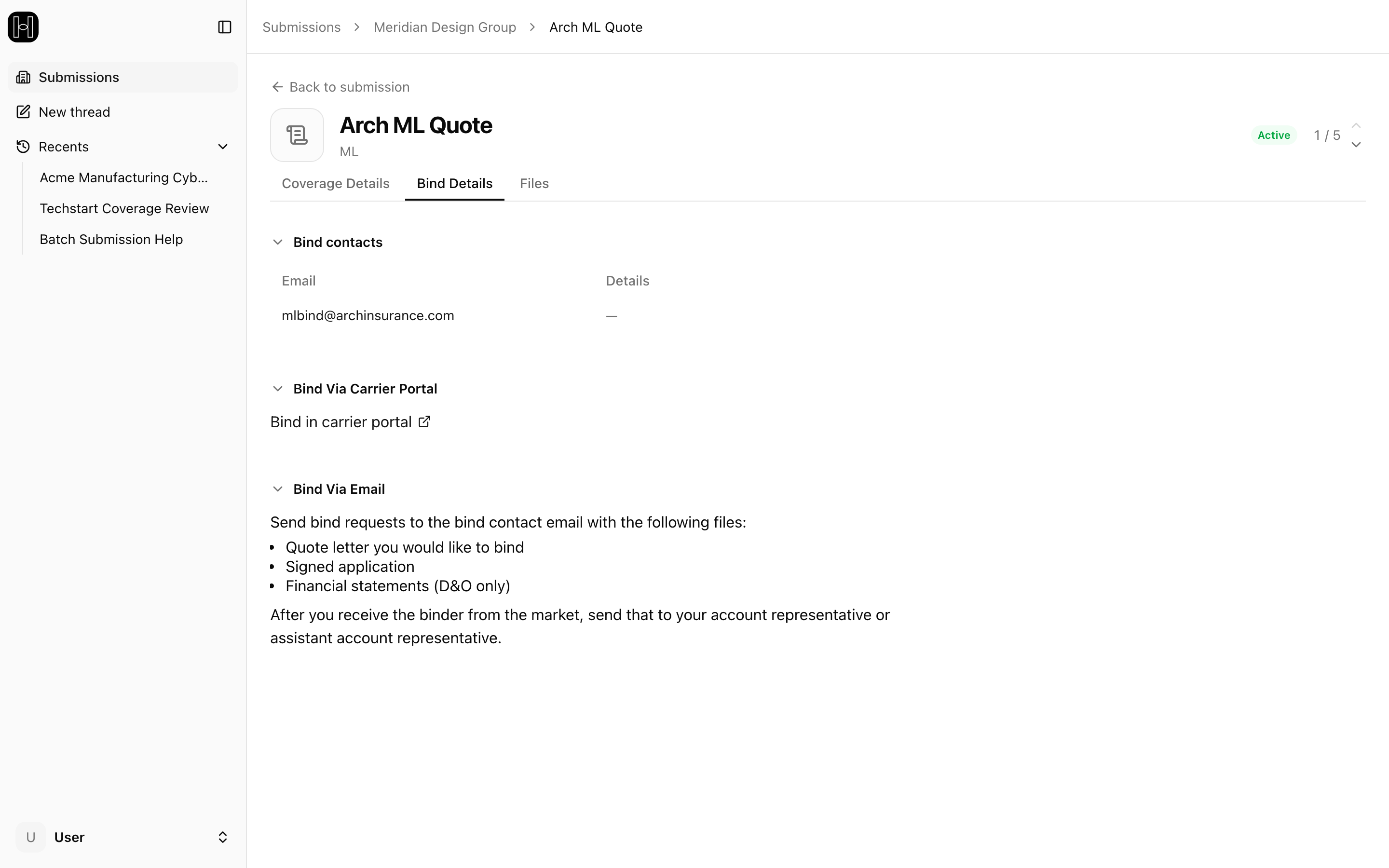
The Bind Details tab on the quote you're binding shows this carrier's bind path, contact, and instructions — open it there rather than memorizing which carrier does which. When a carrier supplies nothing, the tab says bind details aren't available — use your standard carrier contact.
The two patterns
Portal bind. The quote includes a link into the carrier's own portal, where your submission is already loaded — log in with your carrier credentials and complete the bind there. Two gotchas:
Some portal links land on the carrier's homepage rather than the quote — search by the insured's name.
Your carrier portal registration must sit under the same user you are configured with on the platform. If the quote isn't showing in the portal, email support@heraldapi.com to confirm your configuration is correct.
Email bind. You send an order-to-bind email from your own inbox to the carrier contact shown in Bind Details. Include: the quote reference, insured name, confirmed effective date, the limit and retention being bound, and the subjectivity items attached or addressed. The carrier returns the binder and invoice by email.
Some carriers support both; the Bind Details tab reflects what's available for the specific quote in front of you.
Step by step, whichever the path
Open the quote from the Market Details tab on the submission.
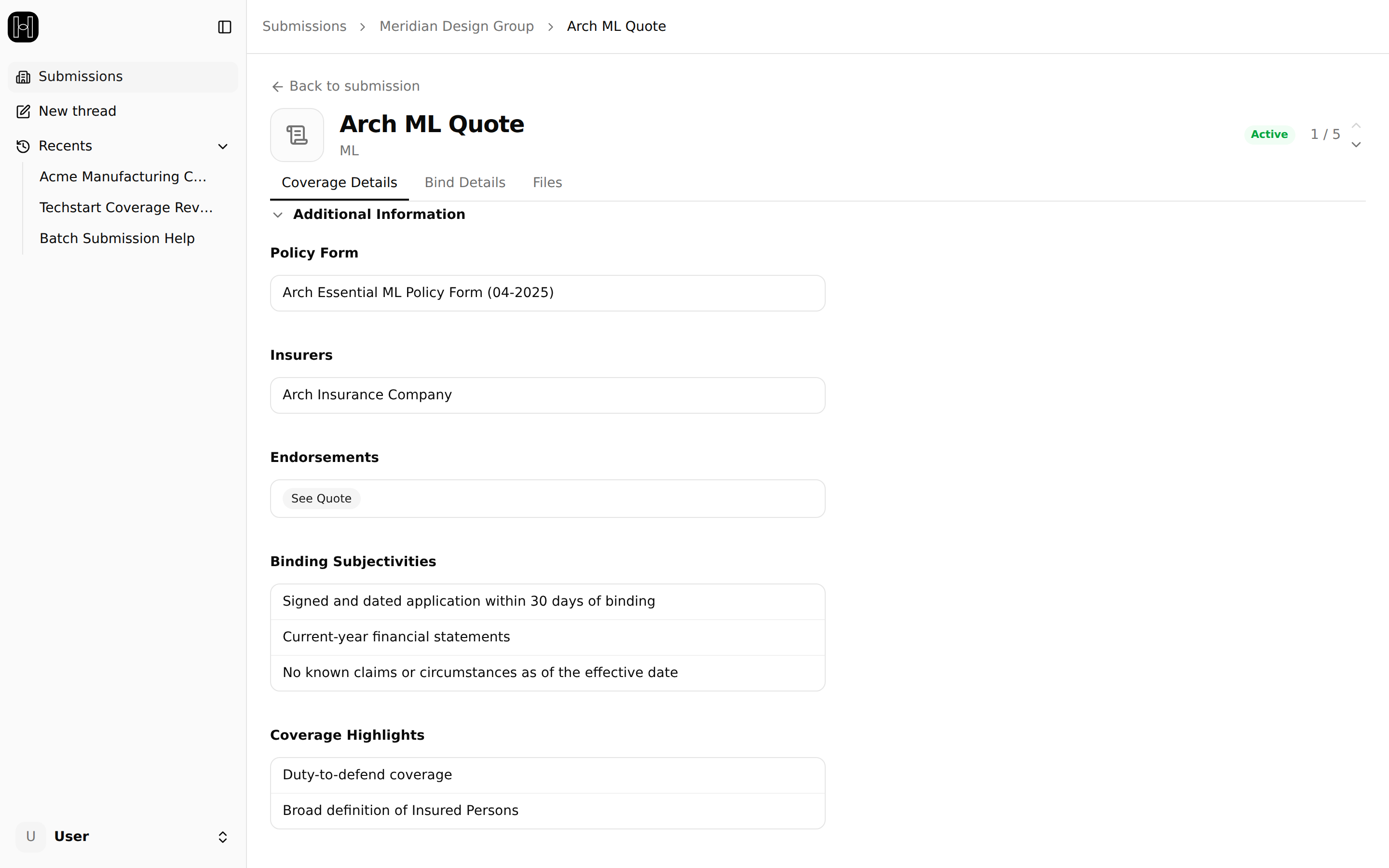
Read the subjectivities on the Coverage Details tab, under Additional Information → Binding Subjectivities — a signed application, financials, attestations, a completed surplus lines form, and so on.
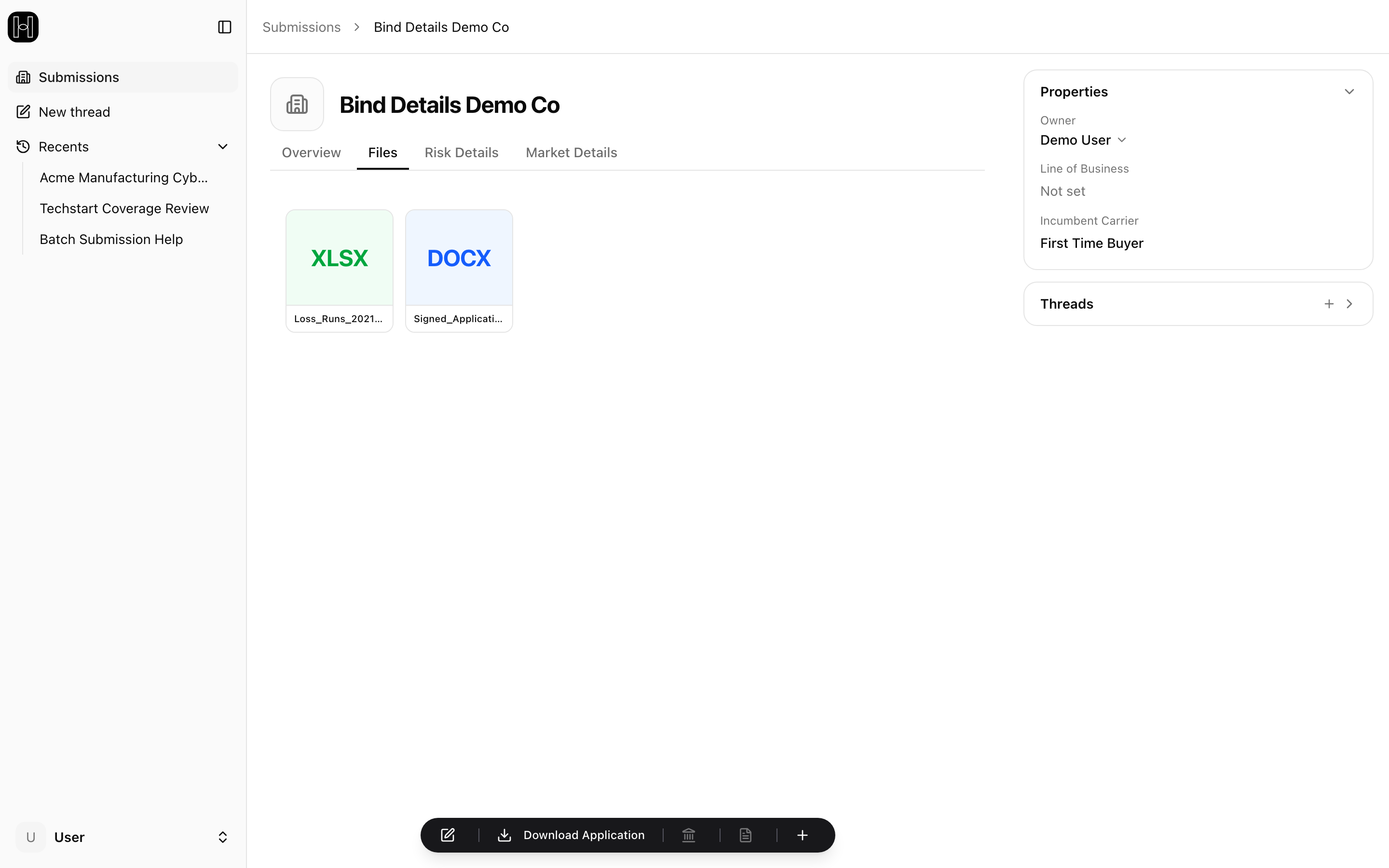
Satisfy the subjectivities. Where a signed application is required, go back to the submission, use Download Application, and get it signed the way you normally would.
Open the Bind Details tab on the quote to see this carrier's bind contact and its bind instructions.
Bind via the path shown. Binding by email means sending your order-to-bind to the bind contact with the quote letter and the subjectivity documents attached.
Once the carrier binds, the binder and invoice enter your agency's normal delivery chain: firm-stamping by your invoicing/AR team, then delivery to the client.
Which application form to send
The platform generates a complete application from what you submitted: open the submission, use Download Application, and send that PDF with your bind request. It carries the same data the carrier already has from the submission, so it matches the quote you're binding — this is the form to reach for whenever a carrier's underwriting or operations team asks for an application.
Some carriers also return their own pre-filled application alongside the quote, and you're welcome to use that one instead. Read it as an accurate record of your submission even where the questions don't line up one to one with the ones you answered: each carrier words its application its own way, the platform maps your answers onto that wording, and every carrier has approved the mapping for its own form. Either version binds the quote.