Starting a renewal submission
Last updated: September 8, 2026
Answers: How do I set up a renewal vs. new business? What's the incumbent carrier setting? Why is the incumbent excluded from digital markets? How do I add the expiring policy and the incumbent's renewal quote?
Create the submission
Click New Submission and fill in the details as usual: name, description (optional), coverage line (required). The Incumbent carrier field stays disabled until you've picked a coverage line. Once it's enabled, set it:
First time buyer (the default): for new business.
A carrier from the list: the carrier currently holding the policy.
Other carrier: free text, if the incumbent isn't in the list — this saves as soon as you click away from the field.
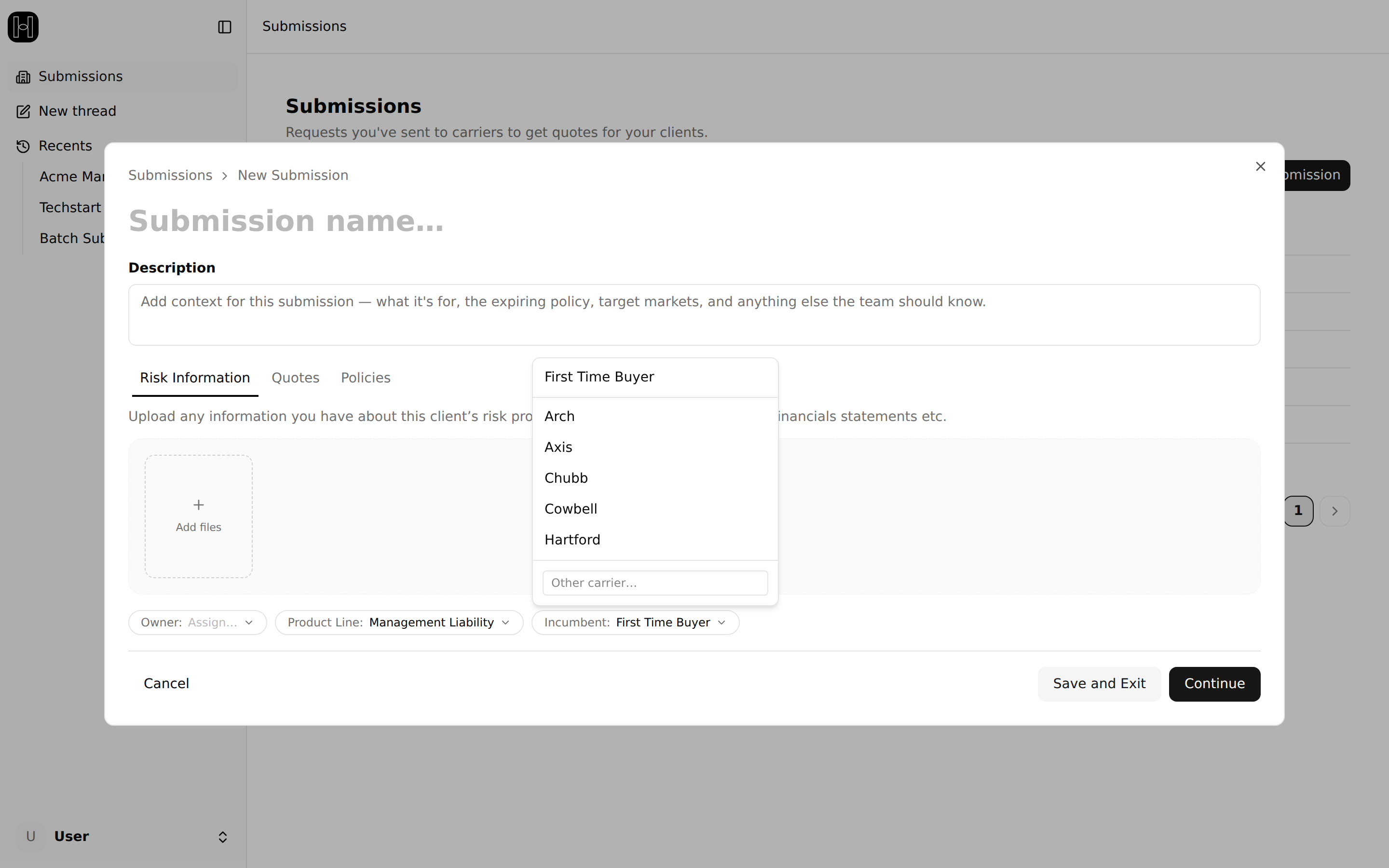
You can attach documents at creation:
Risk information: applications, loss runs, financial statements, or any details about the insured.
Quotes: any quotes you received offline, including the incumbent quote.
Expiring policy: the policy from last year, used to compare new quotes against.
If you don't have these documents readily available, you can always add them later.
Why is the incumbent excluded from digital marketing?
Once you set an incumbent, that carrier is automatically removed from Go to Market, with a notice like: "Renewals for [Market] are not currently supported online. Upload the renewal terms that [Market] sends you." The platform also stops asking that carrier's questions, so you only answer what the rest of the panel needs.
This is deliberate: submitting the incumbent through the digital channel would be processed as new business, and because the carrier already holds the policy, it can be blocked in their clearance process or come back with different terms than your expiring. Get the renewal terms from the incumbent the way you do today and upload them instead.
Go to Market then sends the submission to your non-incumbent markets: that's the remarketing side of the renewal. One caveat: if the account is currently placed through a wholesaler, the wholesaler may have reached a market before you, and that market can block your submission. Check where the account sits before remarketing.
Upload the expiring policy
Click Add files on the bottom bar of the submission to upload the expiring policy: in the upload modal, set the type to Policy. A binder works too if that's what you have. The uploaded policy appears under Policies on the Market Details tab — click it to open its Coverage Details, where Price Details breaks out the expiring premium, taxes, fees, and total.
Upload the incumbent quote
The incumbent's renewal quote usually arrives by email: most carriers send renewal terms proactively, typically 90–120 days before expiration. Click Add files on the bottom bar of the submission to upload it as an offline quote: in the upload modal, set the type to Quote. It joins the Quotes table alongside the digital quotes from remarketing.
Generate the renewal proposal
Once a quote and the expiring policy are uploaded, generate the proposal: expiring coverage and every option side by side. If you don't have the expiring policy, you'll be directed to create a new business proposal instead.