Adding offline quotes
Last updated: September 8, 2026
Answers: Can I add a quote I got outside the platform? How? What gets extracted? Can I edit the values? How do I know where a value came from? Does it appear in comparisons and proposals?
An offline quote is any quote that didn't come automatically through the platform: a PDF emailed by a carrier or wholesaler, an incumbent's renewal terms, a quote received from a carrier portal, a referred quote the underwriter emailed back, or revised terms you negotiated directly. Adding it to the submission puts it in the same Quotes view, comparison, and proposal as your digital quotes.
Where you can add one
Three places, same result:
When creating the submission — the first screen of New Submission has a Quotes tab; upload any quotes you already have from markets there.
On an existing submission's Files tab — click the + (Add File) control in the toolbar at the bottom of the screen.
On an existing submission's Market Details tab — the same + (Add File) control is there too.
Adding one to an existing submission
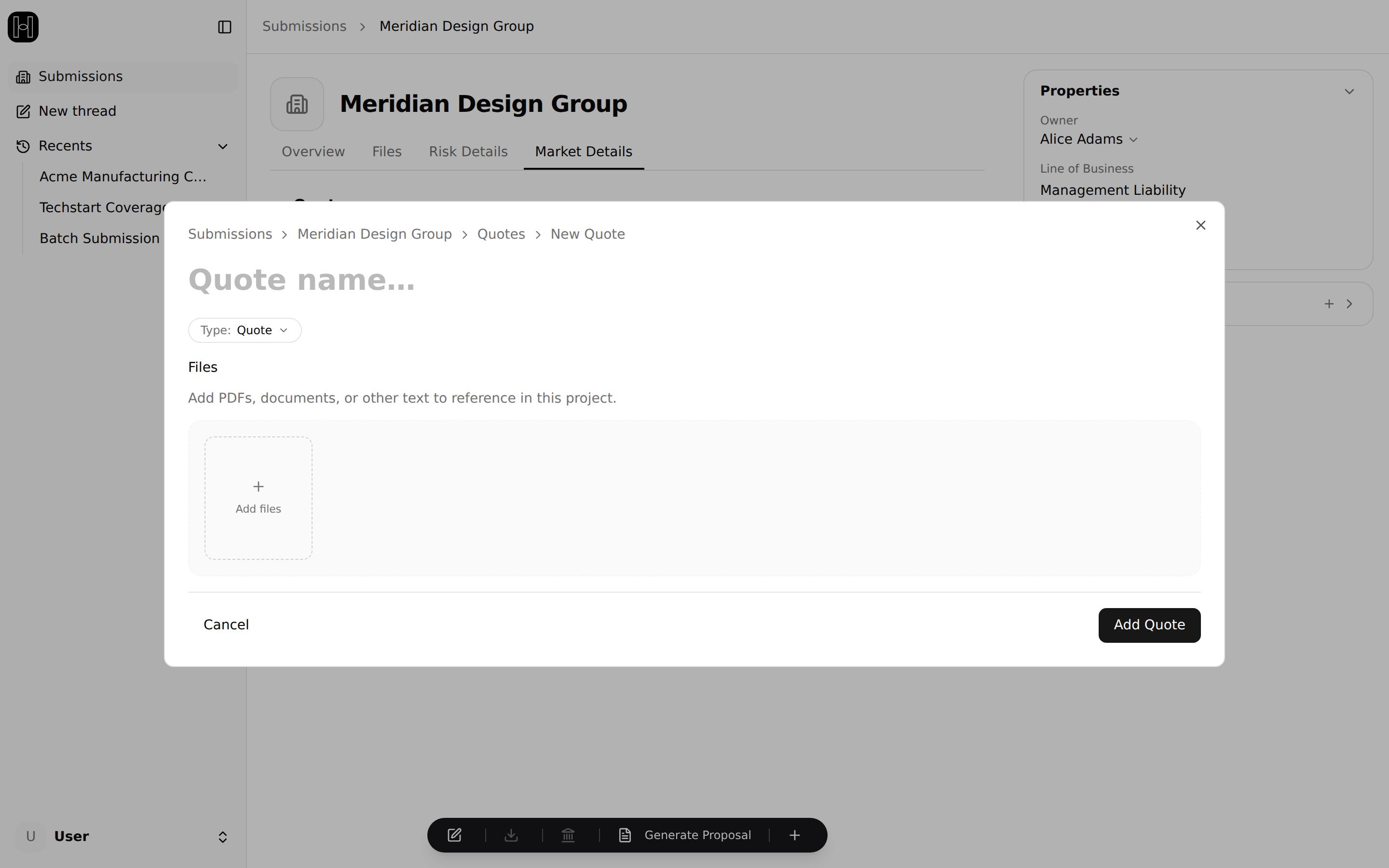
Click + (Add File). The New Quote dialog opens.
Name the quote something you'll recognize in the comparison — carrier and limit work well ("Coalition renewal", "Hartford 2M").
Make sure the Type is Quote — documents typed as Policy are treated as the insured's existing coverage (the expiring-policy column, not an option to choose).
Add the quote PDF and click Add Quote.
The quote then moves through two statuses in the Quotes table on Market Details:
Processing — extraction is running (about a minute).
Uploaded — done; the quote sits alongside your digital quotes.
Extraction pulls the carrier, premium, limits, retentions, sublimits, endorsements, subjectivities, and coverage highlights from the PDF.
If extraction fails, the quote shows an error instead of finishing — retry the upload, and if it fails repeatedly, contact support@heraldapi.com with the file.
Reviewing extracted values
Values read from a document are marked with a sparkle icon — it means "review me," not "verified." Digital quotes get them too: when a carrier doesn't return every coverage detail digitally, the platform extracts the missing details from the carrier's documents so the comparison is complete.
Review sparkled values, and make any corrections in the proposal before sharing it — the export is an editable PowerPoint, and the sparkle markers don't print, so the numbers stand on their own.
If a digital quote's carrier-provided data looks wrong (not just an extracted detail) — that's worth reporting.
Offline-only submissions are fully supported
A submission can be made up entirely of offline quotes. If you've collected a handful of quotes through other channels — emailed by underwriters, from wholesalers, pulled from carrier portals — upload them all and generate a proposal without ever going to market digitally. That includes business that isn't eligible for your panel carriers at all: the comparison and proposal tooling works the same on quotes from any source, so there's no placement too far off-panel to run through it.
What offline quotes do
Offline quotes appear alongside digital quotes on the submission, join the coverage comparison, and export into proposals as full columns (the incumbent quote in a renewal proposal is the canonical case — see Generating renewal proposals).
They stay as you uploaded them: the document is a snapshot, and the original PDF stays attached as the authoritative source. Status changes, expiration tracking, and carrier sync apply to digital quotes only — so track an offline quote's currency yourself, and upload a replacement when the carrier revises terms.
One gotcha: if you upload an emailed quote for a market that was Referred digitally, and that referral later releases back into the platform, you'll see two rows for the same carrier.